
Guides/Conversations
How to Set Up Bookings & Appointments in Modus
Appointments lets customers pick a real open slot themselves and get reminded on WhatsApp automatically — no back-and-forth to find a time, and no one manually sending a reminder the day before.
- 01
Create a booking page
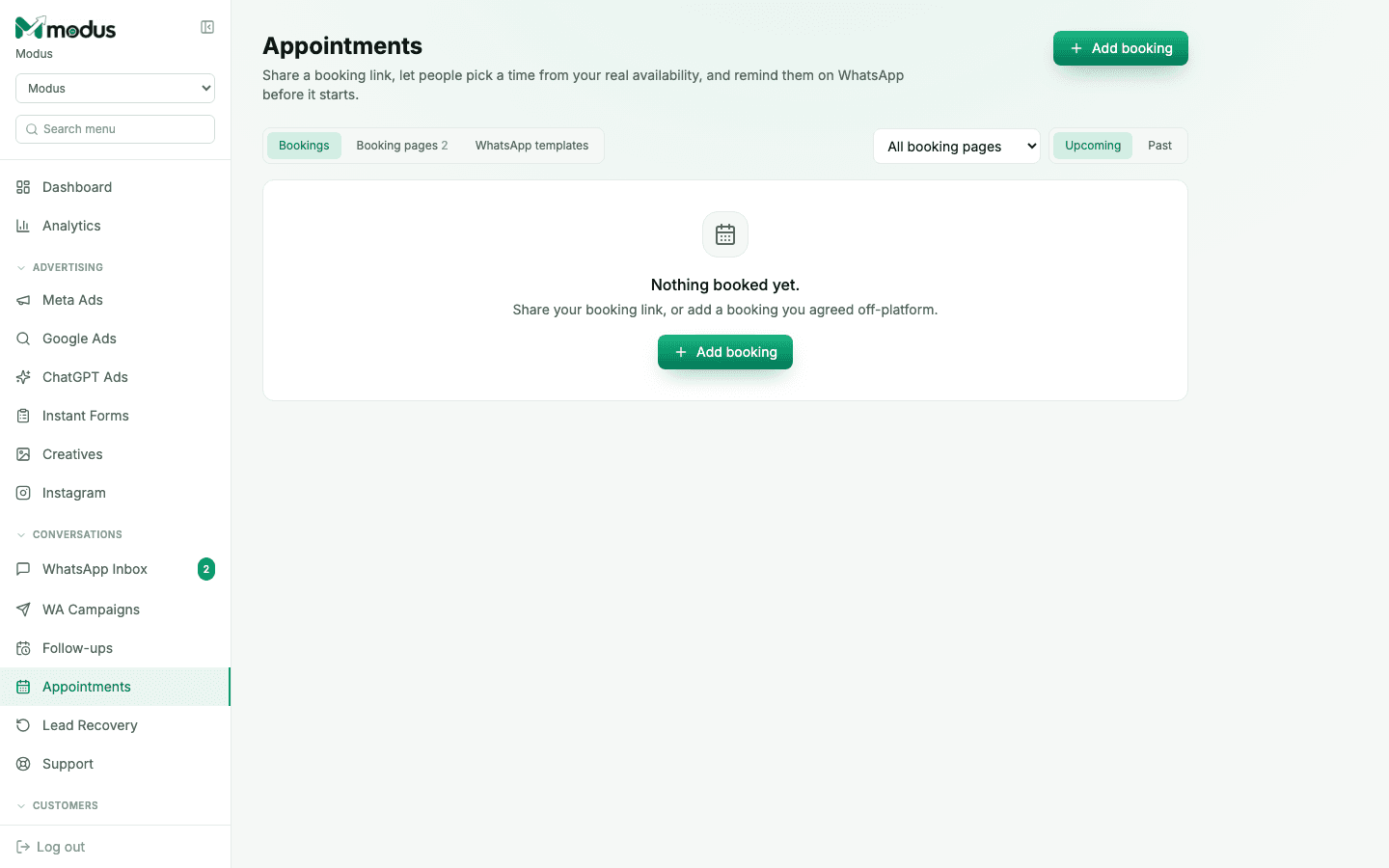
Open Appointments and switch to the Booking pages tab to create one — name it, set the service duration, and define your real availability. You can run more than one booking page (for different services or team members).
- 02
Share the booking link
Send the booking page's link the same way you'd share the website chat link — your Instagram bio, a WhatsApp reply, your Google Business profile. The customer picks a slot from your real availability, no app or account needed on their end.
- 03
Let confirmations and reminders send themselves
The moment a booking is made, a confirmation template sends automatically; reminders fire ahead of the appointment on the same auto-reminder schedule. A seeded default template is used unless you've written and approved your own.
- 04
Write your own confirmation or reminder copy (optional)
On the Templates page (in the left nav — every WhatsApp template across the board lives there now), write your own reminder or confirmation message with the full template editor, submit it to Meta, then pick it for a specific booking page. It must keep the same three-placeholder shape as the default (name, what & when, where/access) — Modus checks that both when you pick it and every time it's about to be sent.
- 05
Add a booking that happened off-platform
Someone booked by phone or in person? Click Add booking to log it against the same booking page, so your upcoming/past view and reminders stay accurate even for bookings that didn't come through the link.
Good to know
Auto-reminders are on by default the moment you create a booking page — there's no separate switch to find and flip.
A custom reminder template that drifts out of the required shape (say, someone edits it in Meta's side after approval) is caught before it sends, and Modus falls back to the seeded default rather than sending a broken message.
Questions we get asked
Do I need campaigns turned on to use appointments?
No — Appointments ships even on plans without Campaigns. It only needs the AI Agent (WhatsApp connection) to send confirmations and reminders.
Can a customer cancel or reschedule themselves?
Yes — every booking confirmation includes the customer's own manage link, authorised by a token in the link itself rather than a login.
What happens if I don't write my own reminder message?
Nothing you need to do — a seeded default reminder and confirmation template are used automatically until you choose to replace them.
See this running on your own numbers.
Every guide on this site is the real product — set up your own agent, ad account and WhatsApp number, and every deal it closes traces back to what produced it.