
Guides/Conversations
How the WhatsApp Inbox Works in Modus
Every conversation your business has — on WhatsApp, on your website widget, or on Instagram DM — lands in one inbox. Most of it, the AI agent handles on its own; your team's job is the queue of conversations it flags, not re-reading everything that came in.
- 01
Open the inbox and read the list
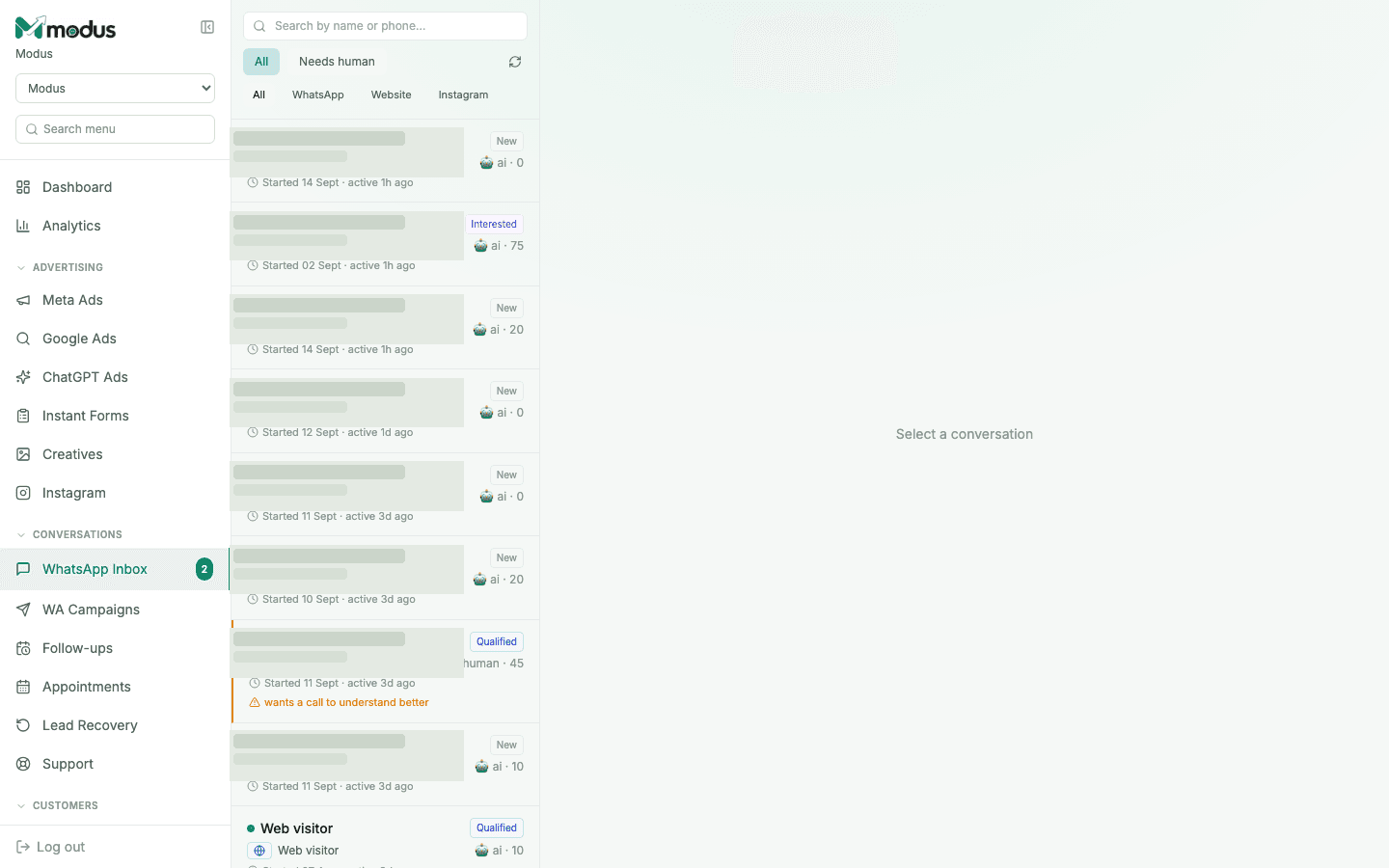
Each row is one contact: name and number, a stage badge (New, Interested, Qualified…), who's currently answering (ai or human, with the lead score next to it), and when they were last active. The channel icons across the top — WhatsApp, Website, Instagram — filter the list to one channel; All shows everything in one place, which is the point of running every channel through one agent.
- 02
Let the AI run the conversation
By default, every new conversation is answered by the AI agent configured in Settings → AI Business Agents. It reads from your Knowledge DB, follows your playbook, and scores each lead 0–100 as it goes based on budget, timeline and intent.
- 03
Work the "Needs human" queue
A conversation gets flagged — and shows an orange marker, like "wants a call to understand better" — when the customer explicitly asks for a person, or when the request needs judgment the agent isn't built to make. Click Needs human at the top of the list to see only those, reply yourself, and the conversation stays with a human until you hand it back or the customer goes quiet.
- 04
Search and triage at volume
Use the search box to jump straight to a name or number. The unread badge on the WhatsApp Inbox item in the sidebar (a small green count) tells you at a glance how many conversations are waiting on a human right now, without opening the list.
Good to know
A conversation's lead score isn't sticky-downward — the pipeline stage never regresses on one noisy message, so a distracted customer who goes quiet mid-qualification doesn't get demoted for it.
Every reply from a website visitor or Instagram DM lands here too — you never have to check three separate apps to see if a customer needs a reply.
Questions we get asked
How do I take over a conversation the AI is handling?
Open the conversation and reply directly — sending a message as a human hands control back to your team for that contact until you release it. The AI won't talk over you.
What happens outside the 24-hour WhatsApp window?
WhatsApp only allows free-form replies within 24 hours of the customer's last message. Outside that window, only a Meta-approved template message can restart the conversation — see the campaigns & templates guide.
Can two team members answer the same conversation?
Whoever replies is who the customer is talking to at that moment — there's no lock, so coordinate in the team about who's handling the "Needs human" queue at any time.
See this running on your own numbers.
Every guide on this site is the real product — set up your own agent, ad account and WhatsApp number, and every deal it closes traces back to what produced it.