
Guides/CRM
How to Use the CRM Pipeline in Modus
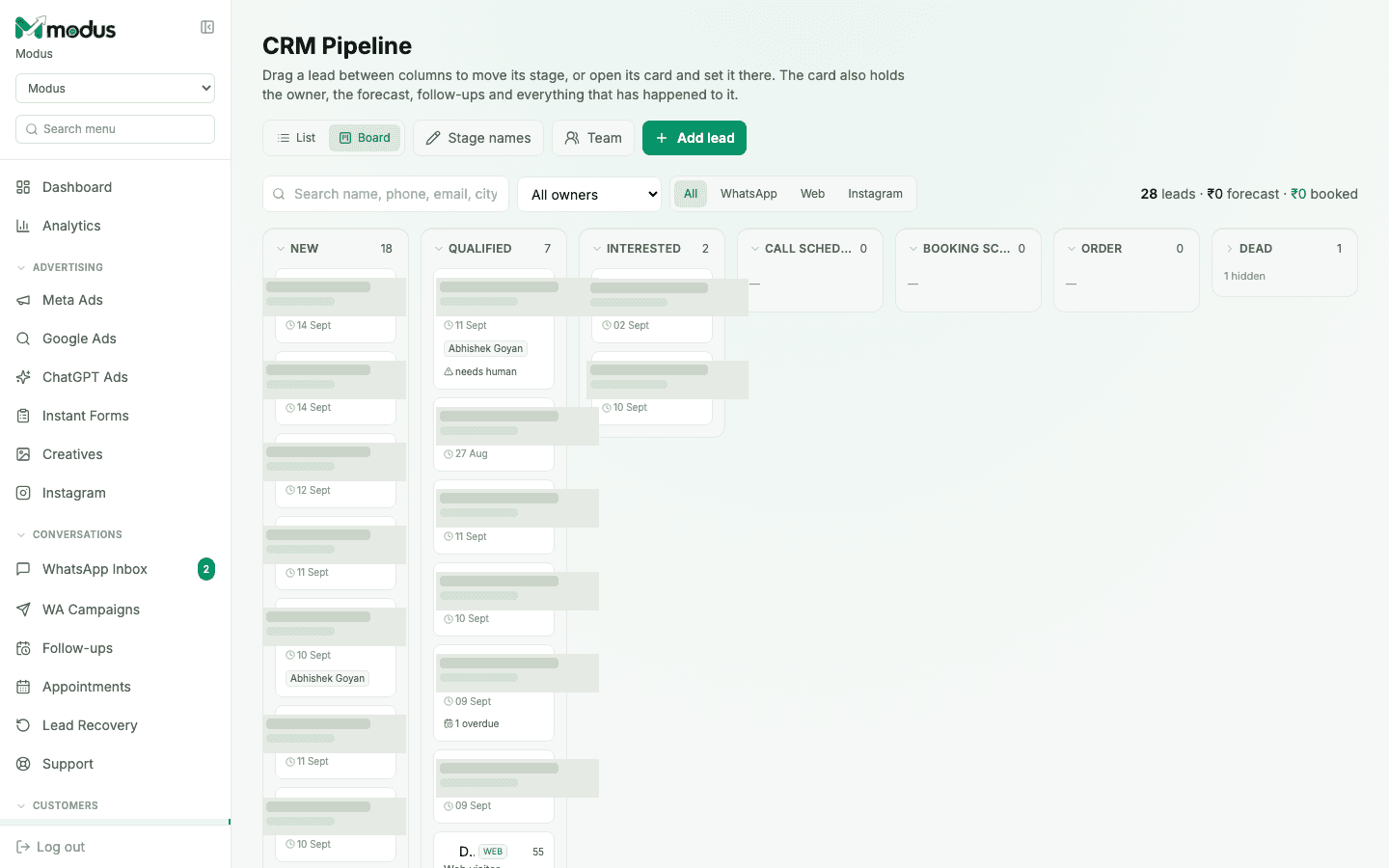
Every contact — WhatsApp, website, or Instagram — sits on one pipeline: New → Qualified → Interested → Call scheduled → Booking scheduled → Order (with Dead and Recovered off to the side). The AI agent advances leads through it automatically as it scores conversations; your team works it from here.
- 01
Switch between Board and List
The Board view is a Kanban: one column per stage, one card per lead, drag a card between columns to move its stage by hand. The List view is what you actually work once you have more than a couple hundred leads — it sorts, filters and bulk-edits in a way a column of cards can't.
- 02
Read what's on a card
Each card shows the lead's score, when it was added, and any flags — needs human or N overdue (a follow-up that's due). Open a card to see the owner, the forecast value, every follow-up, and the full conversation history in one place.
- 03
Filter and search
Use the channel chips (All / WhatsApp / Web / Instagram) and the owner dropdown to narrow the view, or search by name, phone, email or city. Needs human surfaces exactly the leads your team should be looking at right now.
- 04
Add a lead by hand
Click Add lead for a customer who reached you off-platform — a walk-in, a referral, a call. It joins the same pipeline and scoring as everything the AI captures automatically.
- 05
Rename your stages
Click Stage names to relabel the pipeline to match how your business actually talks about it — the underlying stages stay the same, only the labels change.
Good to know
A stage never regresses on one noisy AI classification — so a lead that goes quiet mid-qualification doesn't get silently demoted for it.
The board's stage counts (the number next to each column name) link straight into the List view pre-filtered to that stage — the fastest way out of a column with more in it than a board can show.
Questions we get asked
Does moving a card change anything for the customer?
No — it's purely internal bookkeeping. The customer never sees their stage; it only drives what your team (and the AI's own logic) does next.
What's the difference between "Dead" and "Recovered"?
"Dead" is a lead your team or the agent has given up on. "Recovered" is a dead lead that came back — replied, re-engaged, or was won back by a follow-up sequence — so you can see recovery as its own number, not lost in "New" again.
Can I export what I'm looking at?
Yes, from the List view — the export respects whatever filters and sort you currently have applied.
See this running on your own numbers.
Every guide on this site is the real product — set up your own agent, ad account and WhatsApp number, and every deal it closes traces back to what produced it.