
Guides/Setup
How to Connect Meta Ads & WhatsApp to Modus (Settings)
Modus runs on one Meta credential per business — a system-user token that powers WhatsApp sending, ad reporting and publishing, and Instagram, all at once. You paste it once, in one place; this guide covers minting it and the one-time WhatsApp webhook wiring that goes with it.
- 01
Mint a system-user token in Meta Business settings
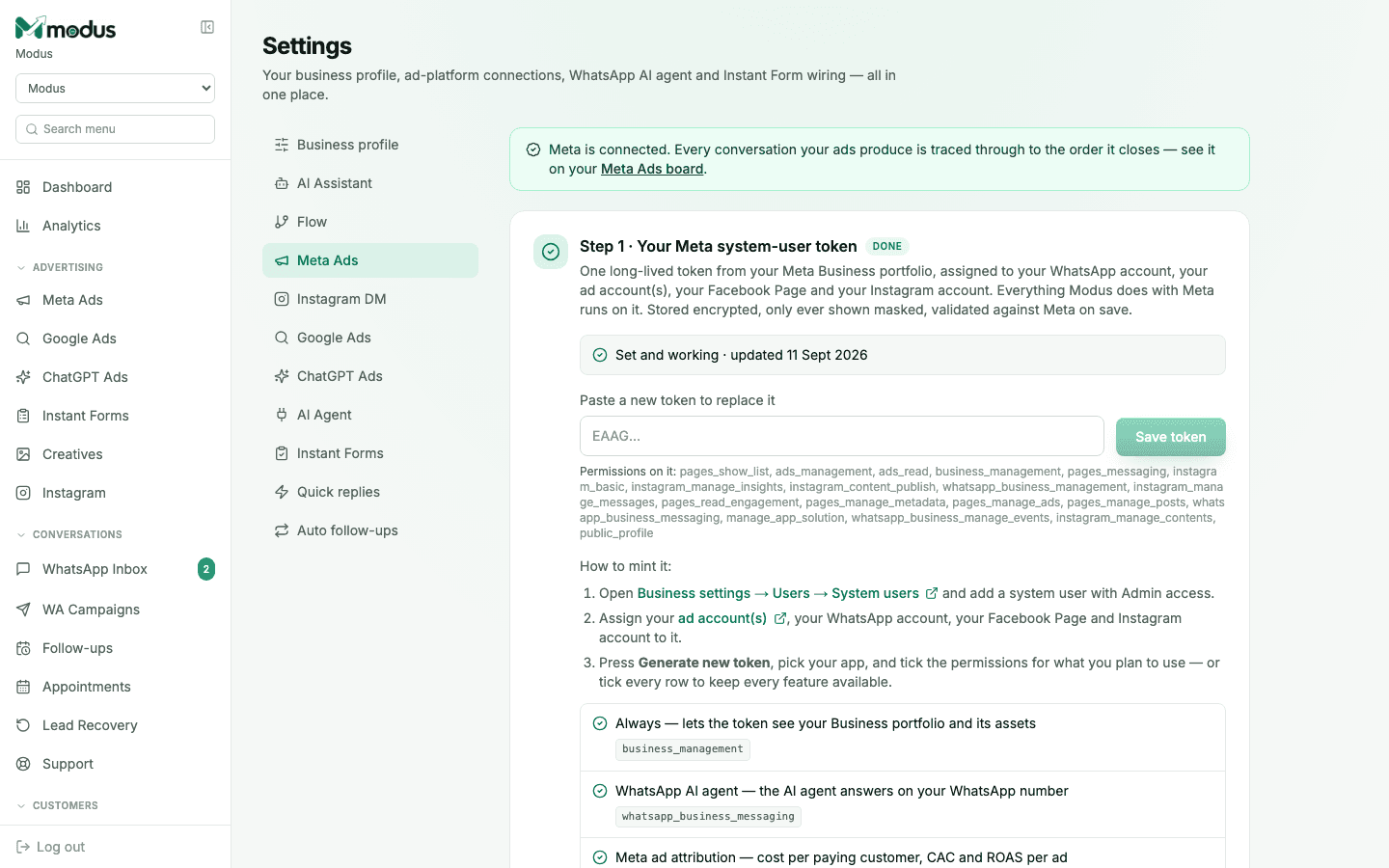
In Settings → Meta Ads, follow the "How to mint it" steps: open Business settings → Users → System users, add a system user with Admin access, assign it your ad account, WhatsApp account, Facebook Page and Instagram account, then press Generate new token and tick the permissions for what you plan to use — or tick every row to keep every feature available.
- 02
Paste and save the token
Paste the token into the field and click Save token. Modus validates it against Meta immediately and stores it encrypted — it's only ever shown back to you masked. A green "Meta is connected" banner confirms it's live.
- 03
Connect the WhatsApp number to the same token
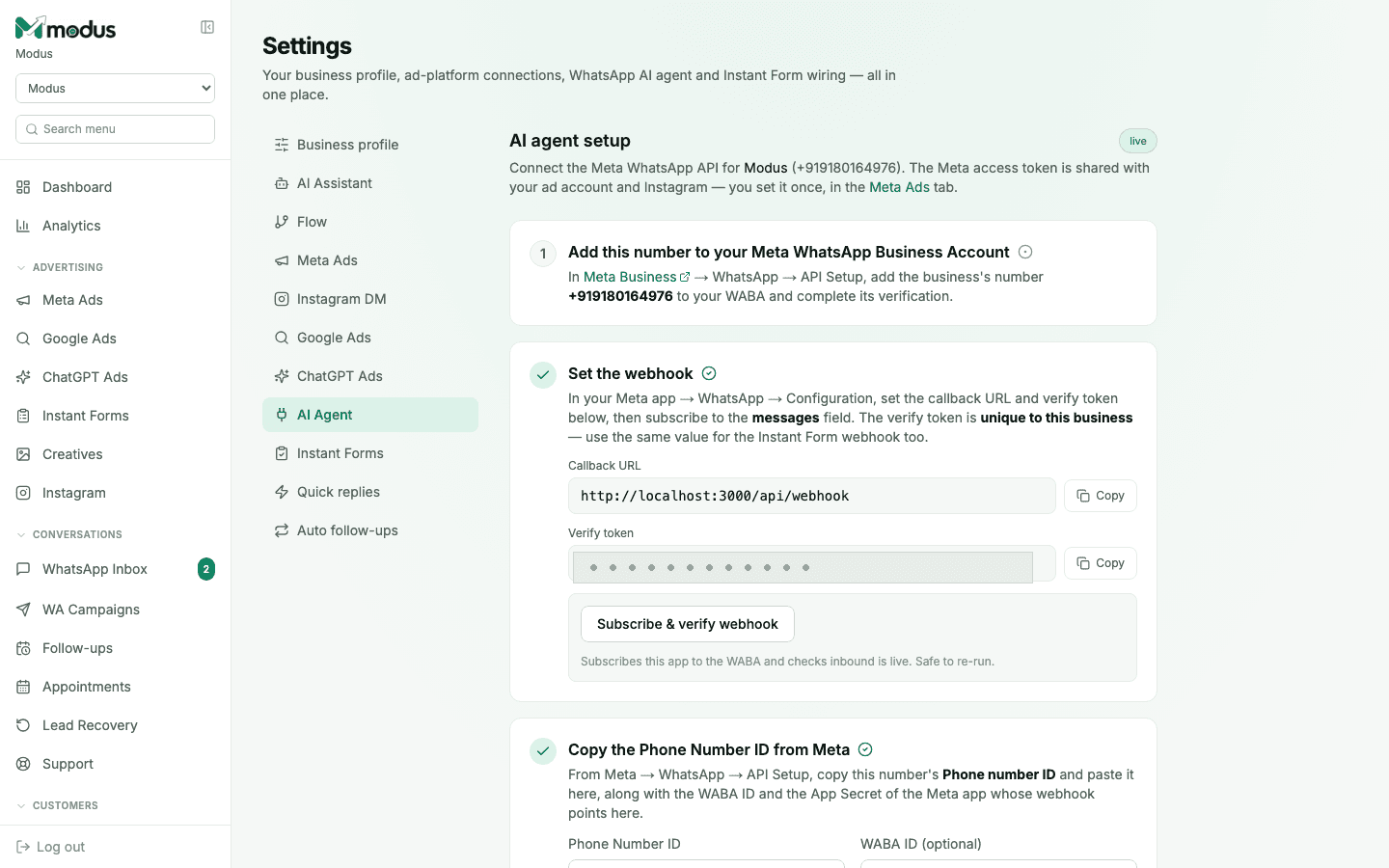
Switch to Settings → AI Agent. Add your business's WhatsApp number to your Meta WhatsApp Business Account (Meta Business → WhatsApp → API Setup) and complete its verification.
- 04
Wire up the webhook
Copy the Callback URL and Verify token shown on this page into Meta's app → WhatsApp → Configuration, subscribe to the messages field, then click Subscribe & verify webhook. This is what lets inbound WhatsApp messages actually reach your AI agent — use the same verify token value for the Instant Form webhook too, if you use lead ads.
- 05
Copy the Phone Number ID and WABA ID
From Meta → WhatsApp → API Setup, copy the number's Phone Number ID and paste it here, along with the WABA ID and the App Secret of the Meta app whose webhook points at Modus. Once all three are set, the "AI agent setup" badge flips to live.
Good to know
ads_management is optional — a token with only ads_read still gives you the full Meta Ads reporting board; add ads_management later, whenever you actually want to publish campaigns from Modus.
If a token only reads one ad account, it links automatically. A token that can see several asks you to pick, since the others may belong to a different advertiser sharing the same Business Portfolio.
Questions we get asked
Do I need to do this again if I add a second ad account?
No — click "Add another ad account this token reads" on the Meta Ads board itself; the token you already pasted is reused.
Is there an OAuth "Continue with Facebook" option?
Not currently — Modus uses one pasted system-user token rather than Embedded Signup or per-asset Facebook Login. It's a five-minute one-time setup on Meta's side.
What if I paste a token that only has WhatsApp permissions?
The WhatsApp AI agent works immediately; the Meta Ads board simply shows nothing to report until a token with ads_read is saved.
See this running on your own numbers.
Every guide on this site is the real product — set up your own agent, ad account and WhatsApp number, and every deal it closes traces back to what produced it.