
Guides/Setup
How to Use the Media Library in Modus
The Media Library is what your AI agent (or your team, manually) can actually send to a customer inside a conversation — a product photo, a price list PDF, a catalogue video. It has nothing to do with ads; for creatives your Meta campaigns run on, see the Creatives guide instead.
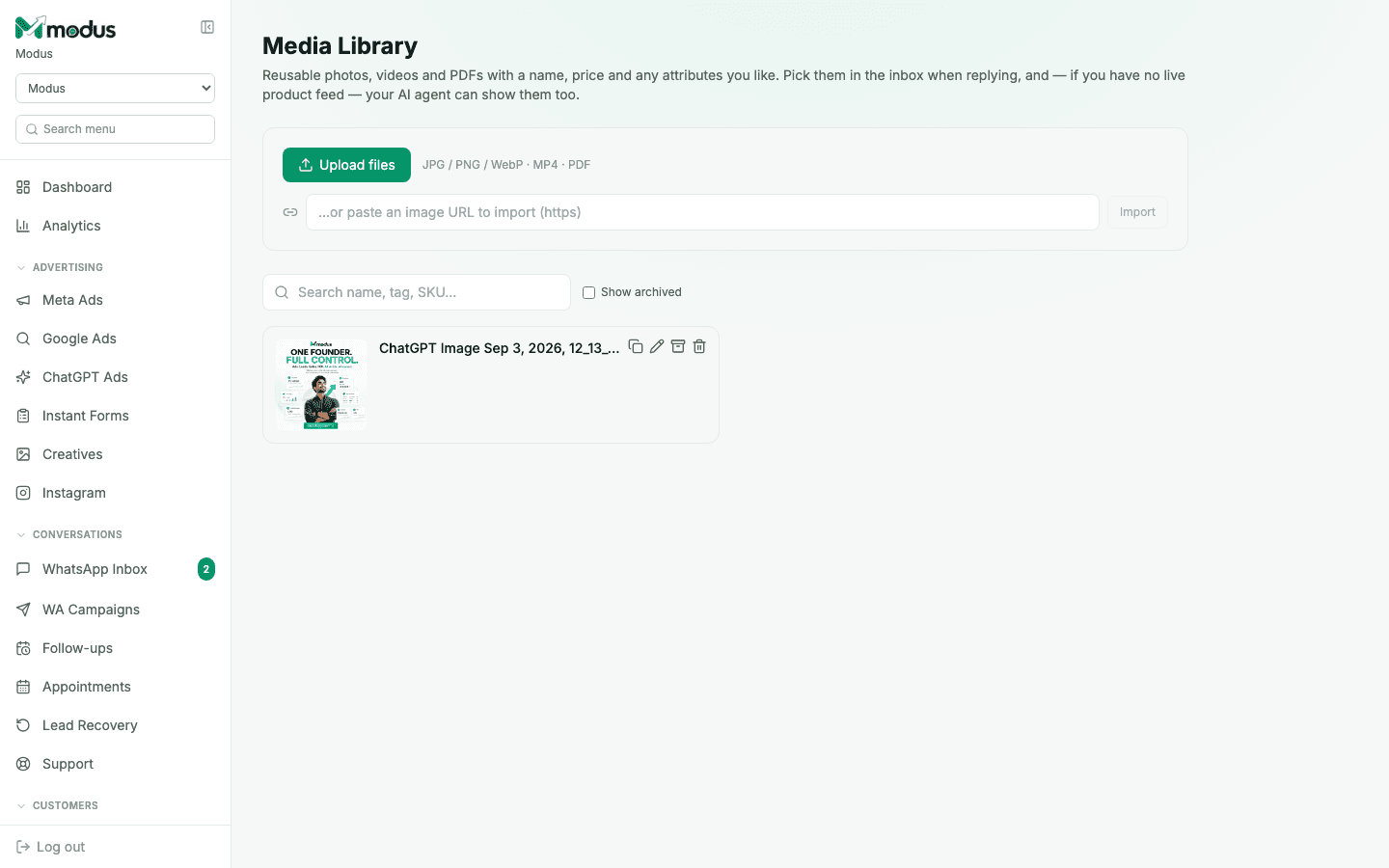
- 01
Upload a file
Open Creatives → Media Library (or the Library item in the sidebar) and click Upload files — JPG, PNG, WebP, MP4 or PDF are all supported.
- 02
Or import from a URL
Already have the file hosted somewhere? Paste an
httpsimage URL into the import field instead of downloading and re-uploading it yourself. - 03
Give it a name, price and attributes
Every item can carry a name, a price and whatever attributes you like — this is what shows up if the AI presents it as a product card, not just a bare image.
- 04
Use it manually, or let the AI reach for it
Pick any Media Library item from the inbox while replying to a customer by hand. If you don't have a live product feed connected, your AI agent can also choose to show one on its own mid-conversation, grounded in what you've named and priced it.
- 05
Archive what you retire
Rather than deleting an item you no longer sell, archive it — tick Show archived to find it again later. Archiving keeps it out of the AI's active picks without losing the record.
Good to know
Search by name, tag or SKU when your library grows past a handful of items — the AI's own picks work the same way regardless of library size, but you'll want that search yourself.
The AI never invents a price or attribute beyond what you've attached to an item — if a detail matters, put it on the item itself rather than assuming the AI will improvise correctly.
Questions we get asked
Can the AI send something from the Media Library without me setting it up first?
No — it only shows items that already exist in your library, with the name and price you gave them. It doesn't generate new items or invent details.
Do I need to upload the same image to both Creatives and the Media Library?
Yes, if you want it in both places — an ad creative and a chat-shareable photo are separate stores serving different purposes, so each needs its own upload.
What file types are supported?
Images (JPG, PNG, WebP), video (MP4) and PDFs — covering product photos, short clips, and documents like price lists or catalogues.
See this running on your own numbers.
Every guide on this site is the real product — set up your own agent, ad account and WhatsApp number, and every deal it closes traces back to what produced it.