
Guides/Account
How to Set Up Two-Factor Authentication in Modus
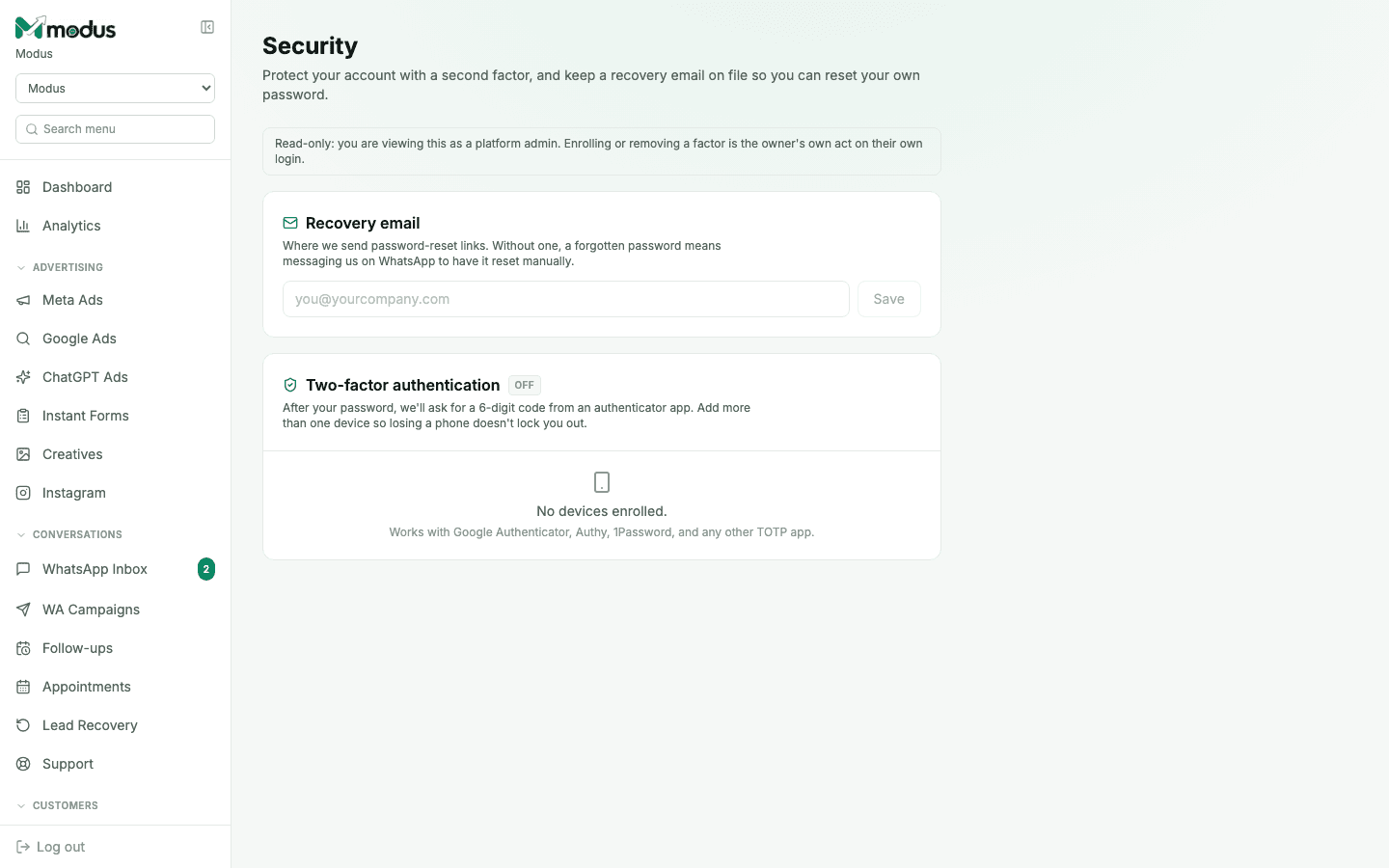
Security covers two things: a second factor on your login (so a password alone isn't enough to sign in), and a recovery email so a forgotten password doesn't mean messaging support to have it reset by hand.
- 01
Set a recovery email first
Under Recovery email, add the address you want password-reset links sent to. Without one on file, a forgotten password means reaching out on WhatsApp to have it reset manually.
- 02
Enroll a device
Click Add device under Two-factor authentication and scan the QR code with an authenticator app — Google Authenticator, Authy, 1Password, or any other TOTP app works. Enter the 6-digit code it generates to confirm the pairing.
- 03
Save your recovery codes
After enrolling, you're shown a set of one-time recovery codes — save them somewhere safe. They're what gets you back in if you lose access to every enrolled device.
- 04
Add a second device
Enroll more than one device (a second phone, a password manager's TOTP) so losing one doesn't lock you out entirely.
- 05
Regenerate codes or remove a device when needed
Regenerating recovery codes invalidates every existing one, and asks for your password first. Removing a device is immediate — do it as soon as you retire a phone.
Good to know
A platform admin can view this page while supporting your account, but enrolling or removing a factor is only ever the owner's own act on their own login — an admin can't do it for you.
Losing every enrolled device without saved recovery codes means going through account recovery from scratch — the two minutes it takes to save those codes somewhere safe is worth it.
Questions we get asked
Is two-factor authentication required?
No — it's off by default, shown as an "OFF" badge until you enroll a device. It's there for accounts that want the extra protection, not a mandatory gate.
What happens if I lose my phone and have no recovery codes?
Reach support — without a recovery code or a working device, account recovery has to be handled manually.
Does every team member need their own two-factor setup?
Two-factor here is on the owner's own login. Staff logins (added under Team) are a separate credential and don't share this account's two-factor enrollment.
See this running on your own numbers.
Every guide on this site is the real product — set up your own agent, ad account and WhatsApp number, and every deal it closes traces back to what produced it.